
Team Management
Invite team members and manage roles within your organization.
Overview
VeriFined lets you collaborate with your team by inviting members to your organization. Each member is assigned a role that controls what they can see and do inside the platform. You can manage your team from the Team tab in your company settings.
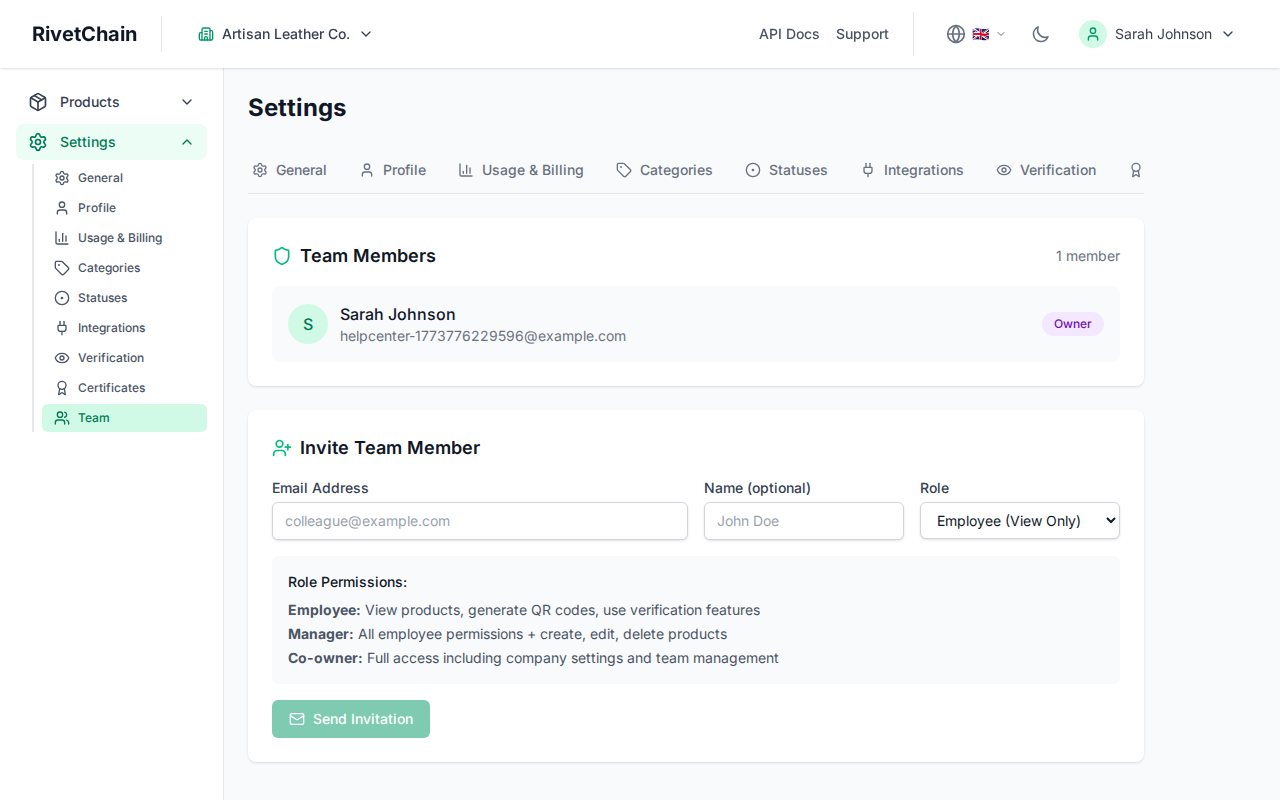
Inviting Team Members
Only Owners can invite people. To add someone to your organization, you send them an email invitation directly from the dashboard. The invited person will receive an email with a link to join your company. If they do not already have a VeriFinedaccount, they will be prompted to create one first.
- 1
Open the Team tab
Navigate to Settings and select the Team tab. You will see a list of all current team members and any pending invitations, and, if you are an Owner, the "Invite Team Member" form.
- 2
Enter email and select a role
In the "Invite Team Member" form, type the email address of the person you want to invite and choose a role: Employee (view only), Manager (can edit) or Co-owner (full access).
- 3
Click "Send Invitation"
The invitee receives an email with instructions to join. Pending invitations are listed on the Team tab, where you can resend or cancel them.
Team size by plan
The Hobby plan is for the owner only. Growth adds up to 3 team members, and Scale and Brand Guard have no limit. Pending invitations count towards the limit until they are accepted or cancelled.
Inviting from the Shopify app
If you use VeriFined through its Shopify app, open the app in your Shopify admin and go to Settings → Team. The tab works the same way: invite by email, pick a role, and resend or cancel pending invitations. The app itself signs you in through Shopify, so the people you invite set their own password and sign in on the VeriFinedwebsite instead. There they see the same store, plus the tools that are only on the website, such as Series for creating batches of QR codes.
Understanding Roles
VeriFined provides three roles to help you control access within your organization. Choose the role that best matches each team member's responsibilities.
Owner
The Owner role has full access to every feature in the organization. Owners can manage billing, update company settings, invite team members, change their roles and remove them, and perform all product operations. There is always at least one Owner per organization, and you can invite additional Owners as Co-owners. This role is typically reserved for company founders or administrators.
Manager
Managers can create, edit and delete products and series, record custody events, and upload or delete product files. They cannot change company settings, invite or manage team members, or access billing. This role is ideal for team leads who need operational control without full administrative access.
Employee
Employees have read-only access: they can view products, generate QR codes and use the verification features, but they cannot create, edit or delete products or events, change company settings, manage team members, or access billing. This role is suited for staff who need to look up and verify products.
Managing Existing Members
As an Owner, you can update a member's role or remove them from your organization entirely from the Team tab, using the actions next to each member. Owners (including yourself) cannot be changed or removed there. Changing a role updates their permissions instantly, and removing a member revokes their access to all company data.
Removing Team Members
To remove someone from your organization, open the Team tab, find the member you want to remove, and click the remove button. You will be asked to confirm before the action is completed. Once removed, the person will no longer be able to access your company's dashboard, products, or settings. Their personal VeriFined account remains active, but it will no longer be associated with your organization.