
Series Management
Create series, manage editions, and handle bulk product operations.
What Are Series?
A series is a collection of similar products grouped under a shared identity. Series are ideal for limited editions, product batches, collections, or any scenario where multiple items share common attributes but each unit needs its own individual verification record.
For example, a watchmaker releasing 100 units of a limited-edition model would create a series with a quantity of 100. All 100 products are created at once, one per watch. Each watch gets its own UUID and event history, while the series provides a unified view of the entire collection.
Create a Series
- 1
Navigate to the Series tab
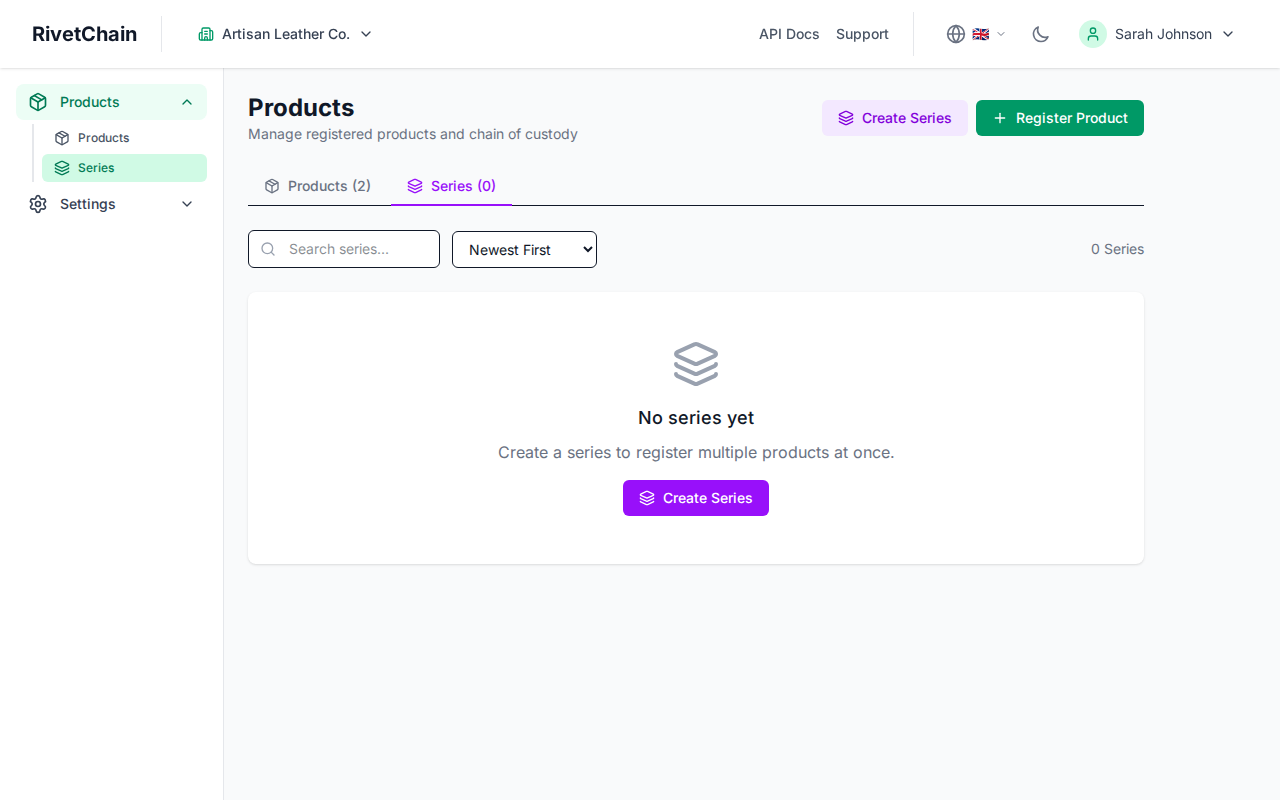
In your company dashboard, open Products in the sidebar and choose the "Series" tab. If you have not created any series yet, you will see an empty state with a prompt to create your first one.
- 2
Open the create series modal
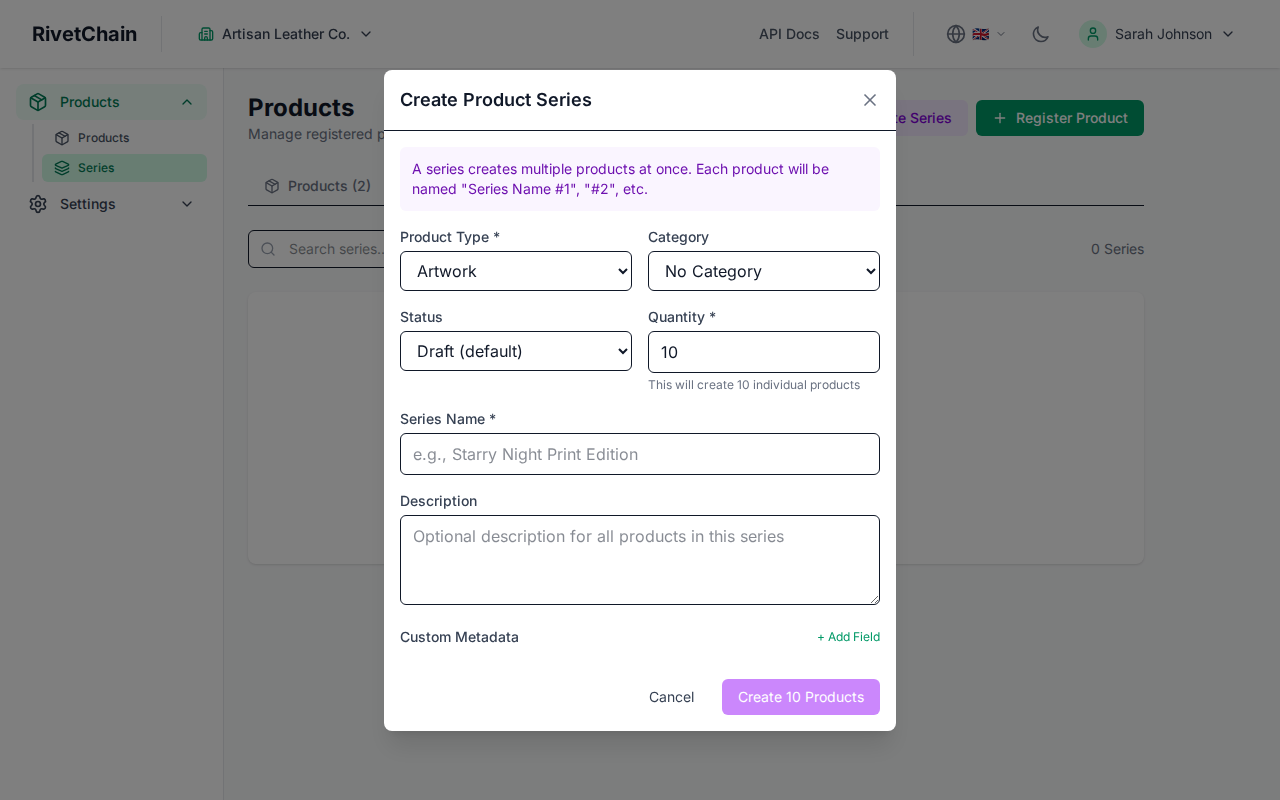
Click the "Create Series" button to open the creation form. You will see fields for the product type, category, status, quantity, series name, an optional description and custom metadata, plus the option to anchor the series to the blockchain.
- 3
Fill in series details
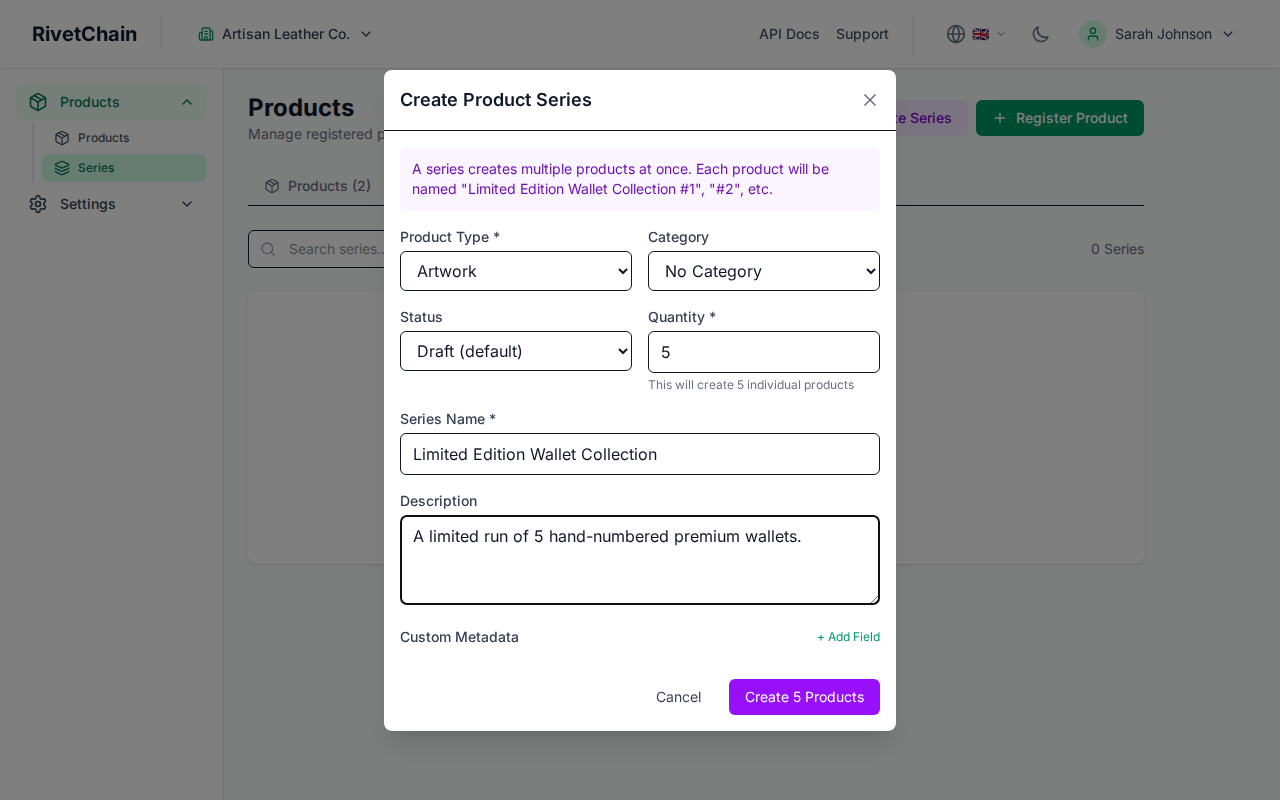
Choose the product type, enter a descriptive name and set the quantity (between 1 and 10,000) — the number of products to create. You can also add a description that applies to every product in the series. Blockchain anchoring is off by default; turn it on here if you want the series anchored. Then click the create button to create the series and all of its products.
- 4
View your new series
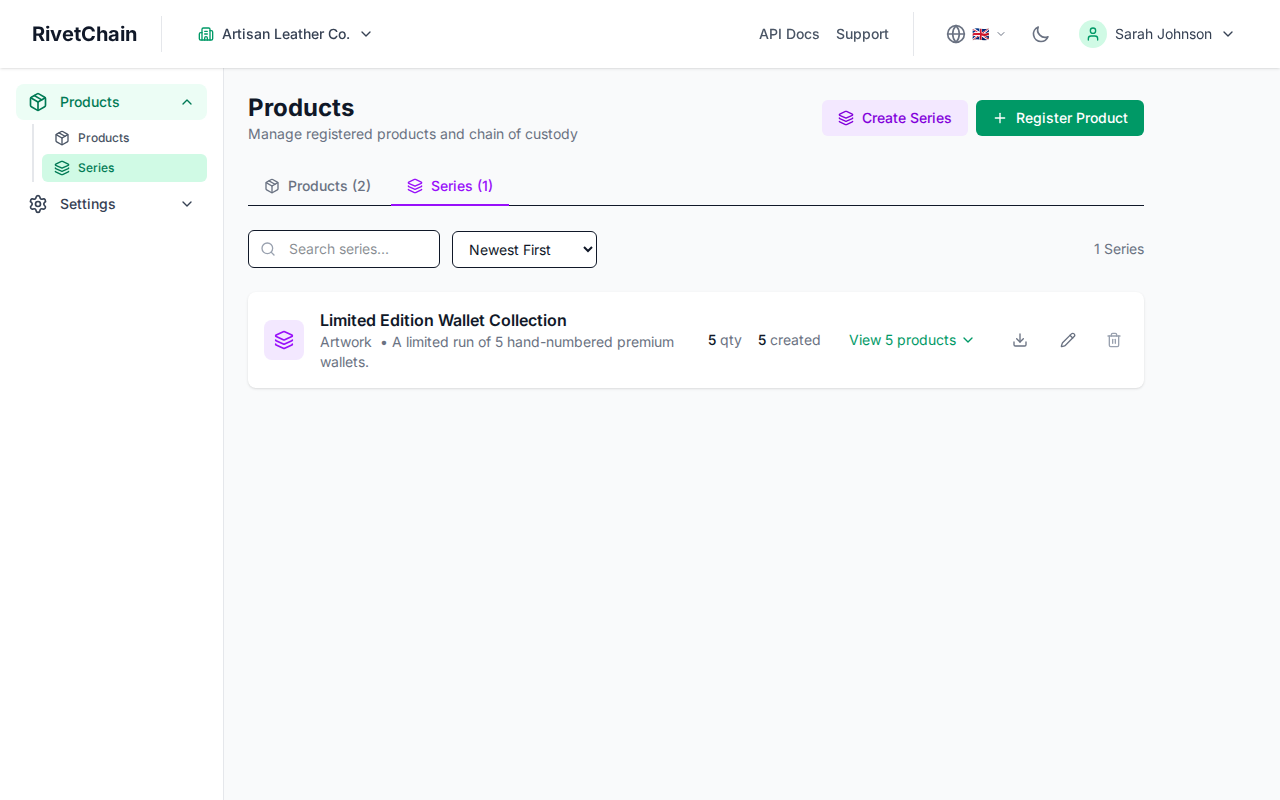
After creation, the series appears in your series list. You can see the series name, the number of products it contains, and the creation date.
Managing Editions Within a Series
When you create a series, VeriFined automatically creates one product per edition. The products are named after the series ("Name #1", "Name #2", …) and each one records its edition number (1/N up to N/N). Each edition has its own unique UUID, event history, and verification record. The series detail page gives you an overview of all editions and their current statuses.
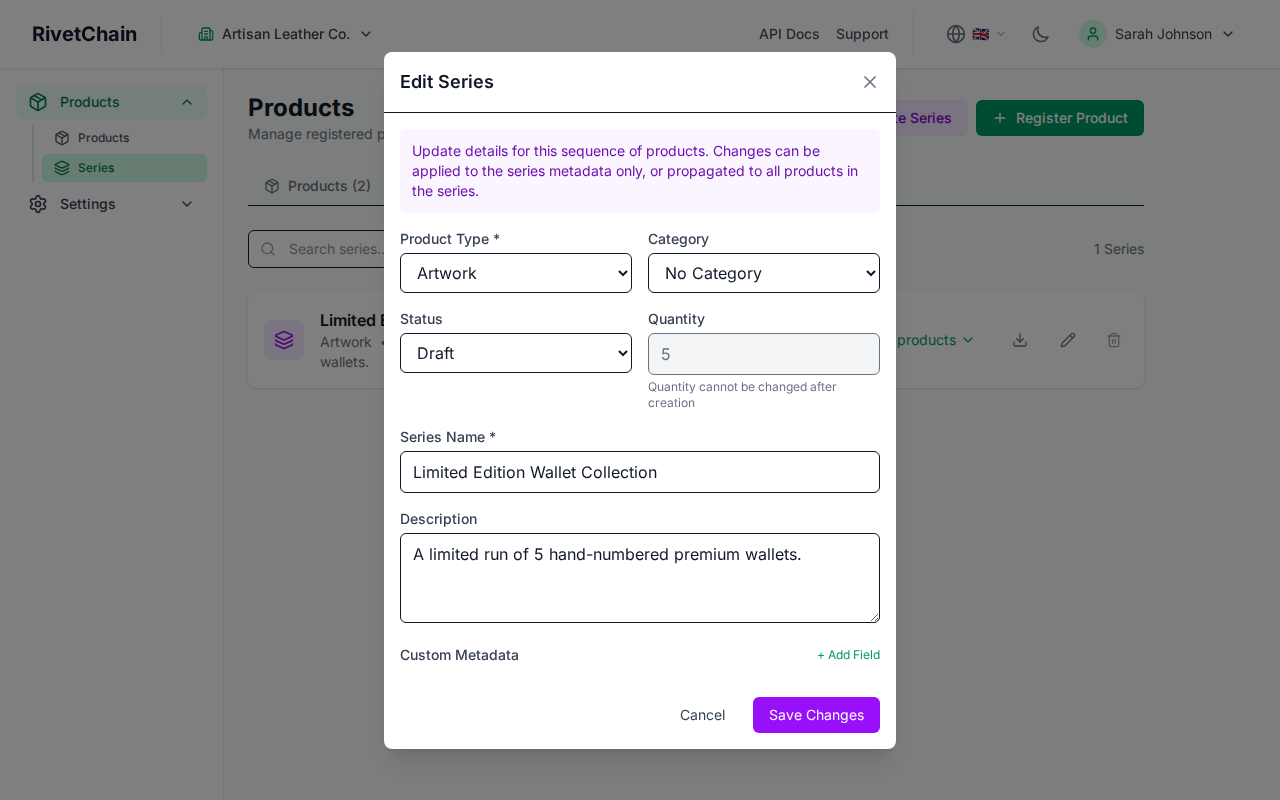
The number of editions is set when the series is created. Existing products cannot be added to a series, and products cannot be moved from one series to another. Products within a series share the series context but maintain their own independent event ledgers.
Series vs. Standalone Products
Not every product needs to belong to a series. Use series when you have multiple related items that share a common identity, such as editions of a print, units of a limited release, or batches from a production run. Use standalone products for unique one-of-a-kind items like individual artworks, custom commissions, or singular certificates.