
Product Management
Register products, add events, upload files, and manage categories.
What Are Products?
In VeriFined, a product is a digital twin of a physical or digital asset. Each product receives a unique UUID that links it to an immutable chain of events. These events form a verifiable history that anyone can audit through the public verification page.
Products can represent anything you want to track and verify: luxury goods, certificates, artworks, industrial parts, documents, or any item that benefits from tamper-proof provenance records.
Understanding VeriFined Products
A key concept to understand is that a VeriFined product represents a specific individual item — not a catalog or inventory entry. This is an important distinction if you are used to working with e-commerce platforms or inventory management systems.
Inventory Item vs. VeriFined Product
In a typical inventory or e-commerce system, a "product" is a catalog entry with a quantity. For example, a jewelry store might have:
- 18K Gold Pearl Earrings — 20 in stock
- Eternity Diamond Band — 8 in stock
- Men's Diamond Wedding Band — 12 in stock
In VeriFined, each of these would not be a single product. Instead, every time one of these items is sold to a specific customer, a new VeriFined product is created for that individual sale. Each VeriFined product has:
- Its own unique UUID and identity
- Its own certificate of authenticity, tied to the specific buyer
- Its own event timeline (creation, payment, fulfillment, delivery, etc.)
- Its own public verification page, and its own blockchain proof if you turn on anchoring for it
Example
Imagine a jewelry store sells the 18K Gold Pearl Earrings to three different customers:
- Order #5501 — sold to Alice. VeriFined creates a product: "18K Gold Pearl Earrings" with a Certificate of Authenticity (#5501-1) issued to Alice, its own event history, and a unique verification URL.
- Order #5502 — sold to Bob. A separate VeriFinedproduct is created: same item name, but a completely independent passport with its own certificate (#5502-1) issued to Bob.
- Order #5503 — sold to Carol. Again, a new VeriFinedproduct with its own certificate (#5503-1), events, and verification page.
Each of these three VeriFined products can be independently verified, optionally riveted to the blockchain, and shared with the respective customer. They are completely separate records — editing or anchoring one does not affect the others.
Why Individual Products?
This one-product-per-sale model is what makes VeriFined verification meaningful. A certificate of authenticity must be tied to a specific item sold to a specific person. When you turn on blockchain anchoring, it proves that the record existed at a point in time and has not been tampered with. This only works when each record represents a unique, individual transaction — not a generic catalog entry.
If you use an integration like Shopify, this happens automatically — aVeriFined product is created in Draft for each item in an order when the order is placed (one per unit), and it becomes Active when the order is fulfilled. If you use the API or create products manually, you should create one VeriFinedproduct per item sold or issued.
Create Your First Product
Creating a product is straightforward. You can create standalone products or add them to an existing series (covered in the Series Management guide).
- 1
Navigate to the Products page
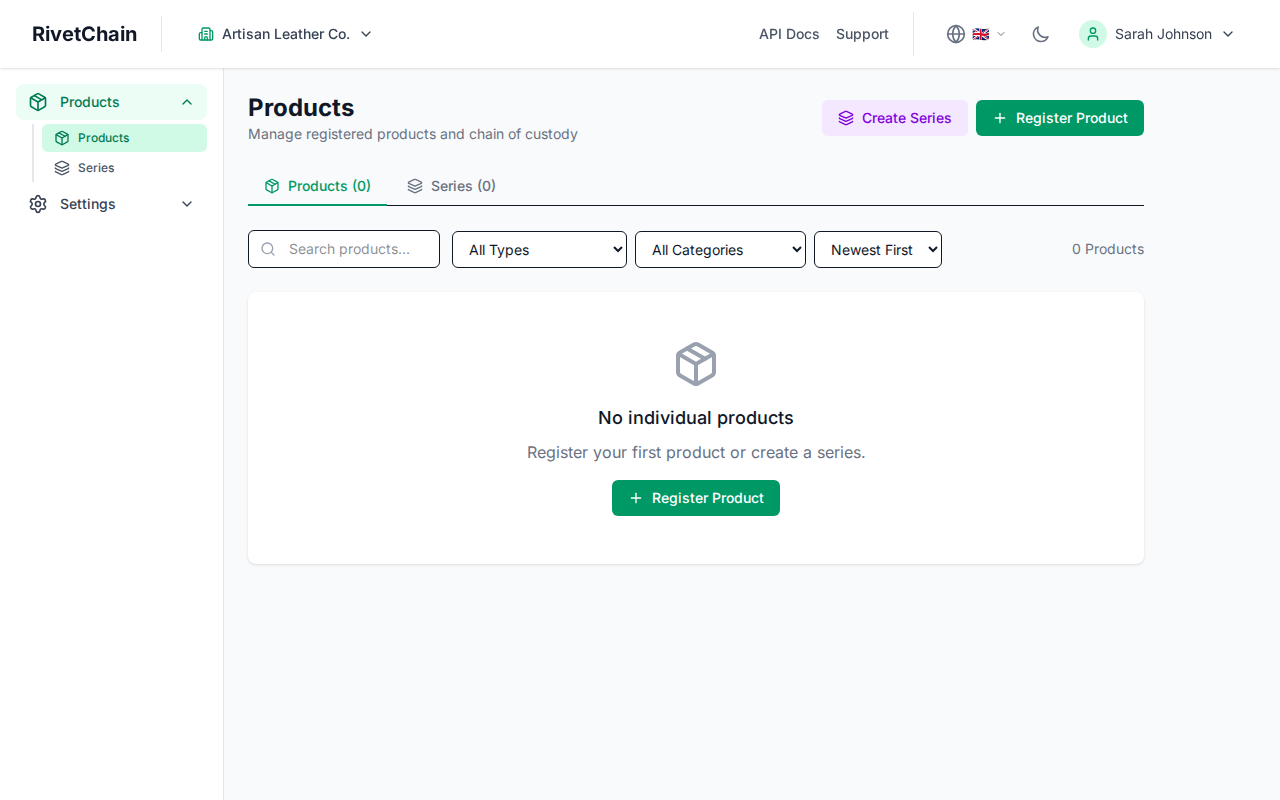
From your company dashboard, click "Products" in the sidebar navigation. If this is your first time, you will see an empty state prompting you to register your first product.
- 2
Open the product form
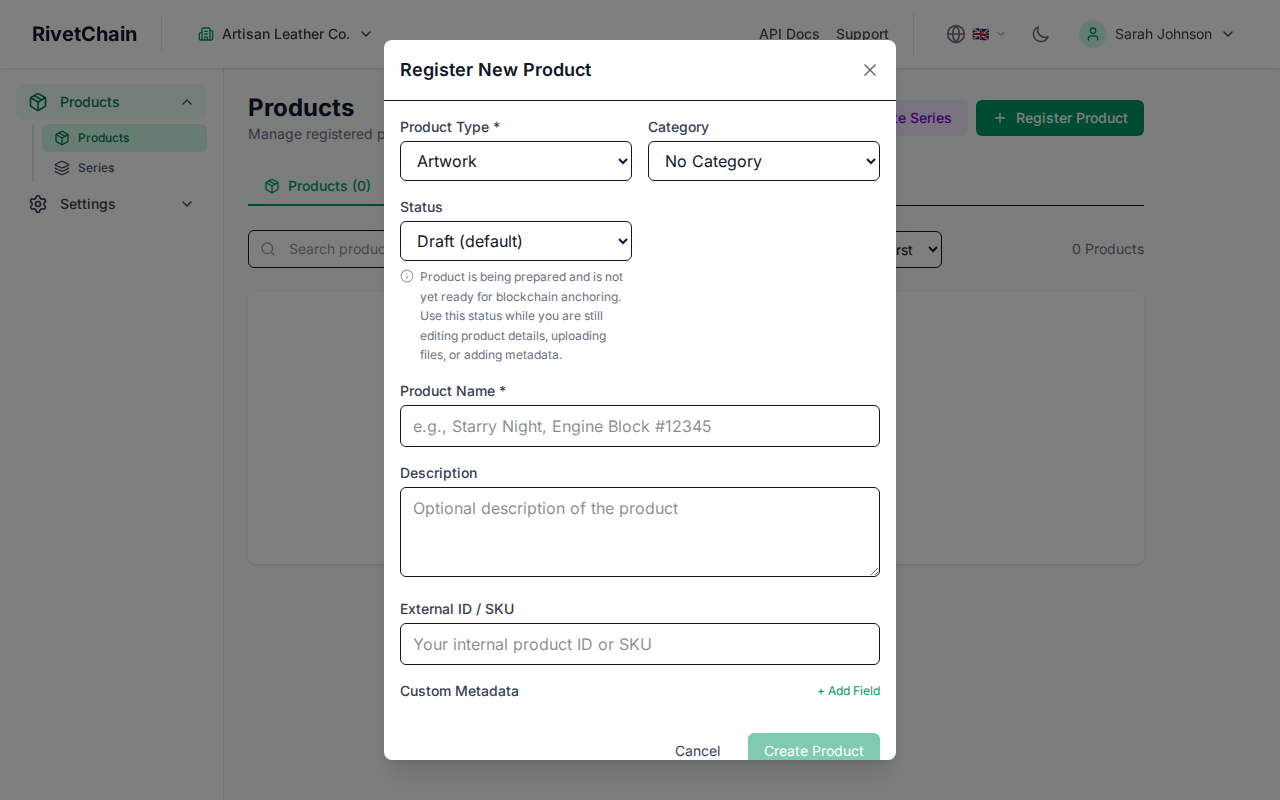
Click the "Register Product" button to open the product form. You will see fields for the product type, name and optional details.
- 3
Fill in product details
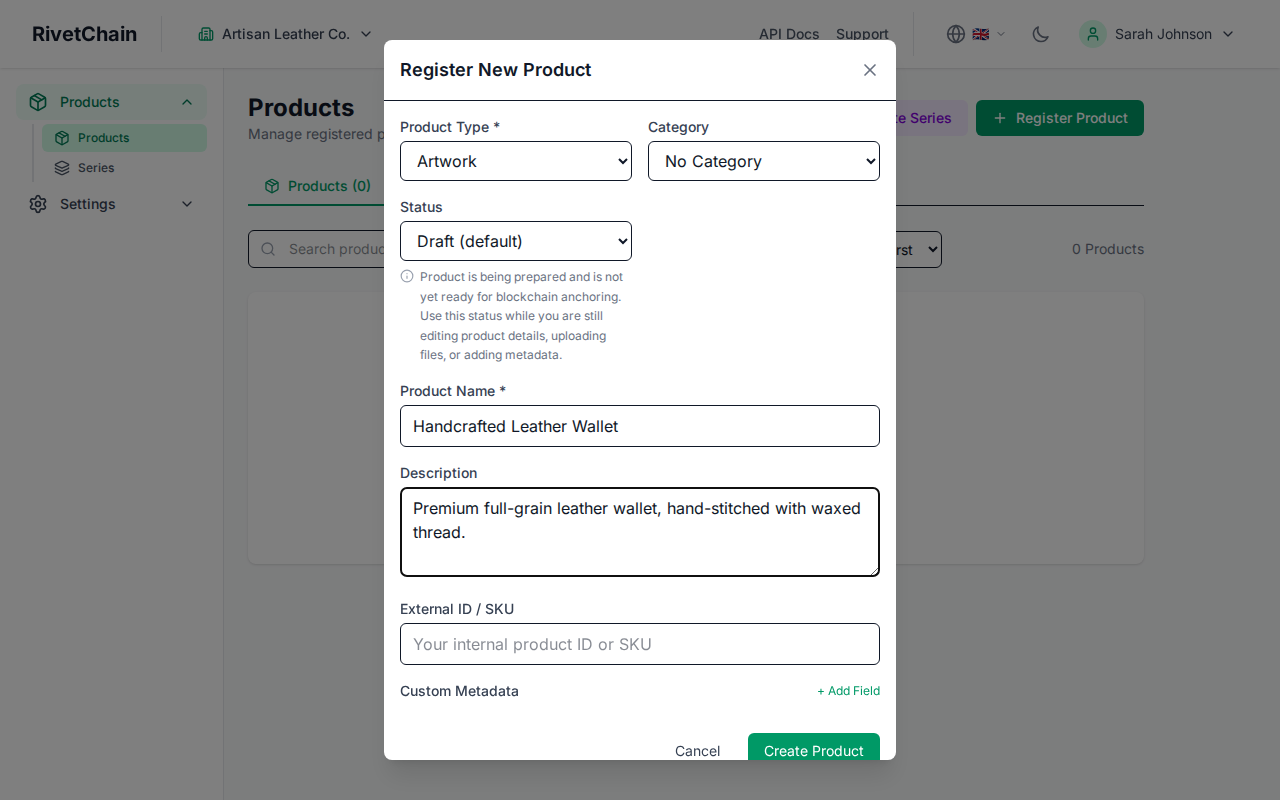
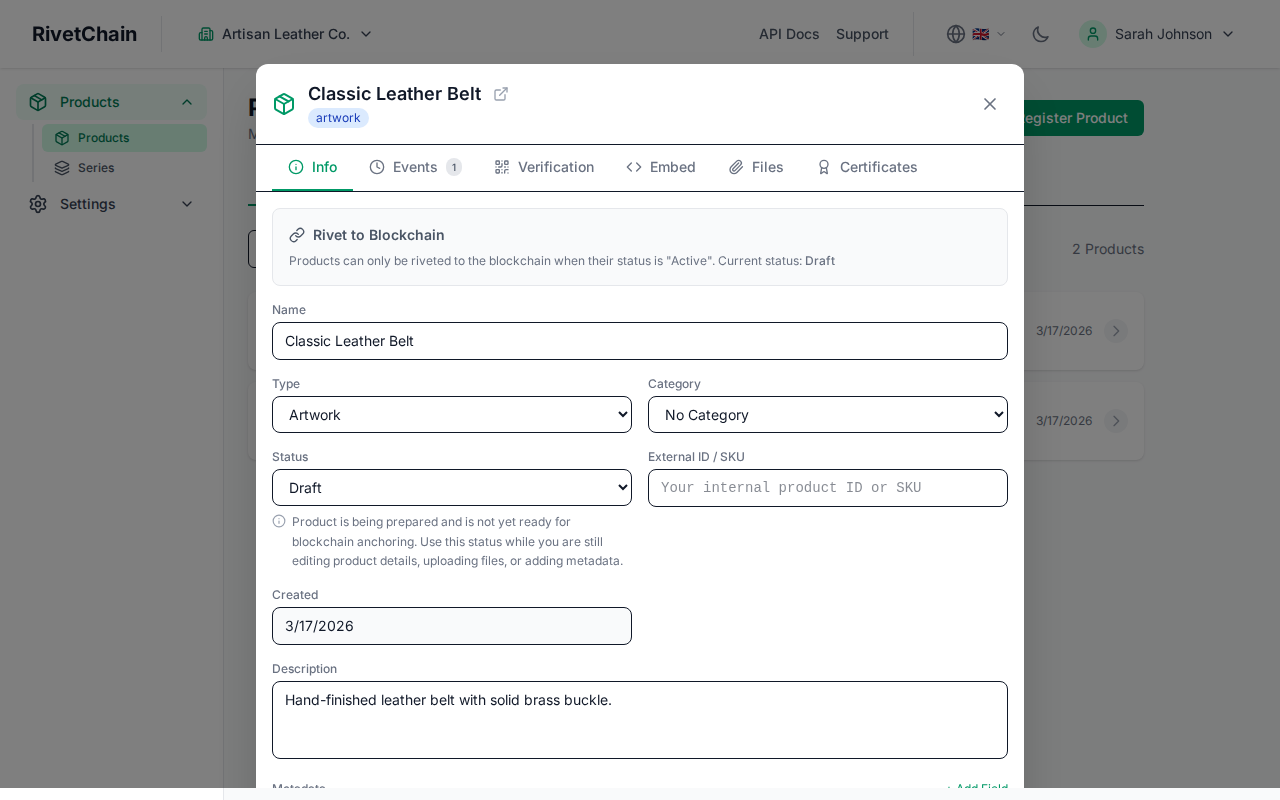
Choose a product type and enter a descriptive name (both are required). You can also add a description, image URL, SKU and custom metadata, and assign a category and a status (Draft by default). If you set an Active status, you can also turn on "Rivet to Blockchain" to anchor the product's events. Anchoring is off by default. Click "Create Product" to register it.
- 4
View your new product
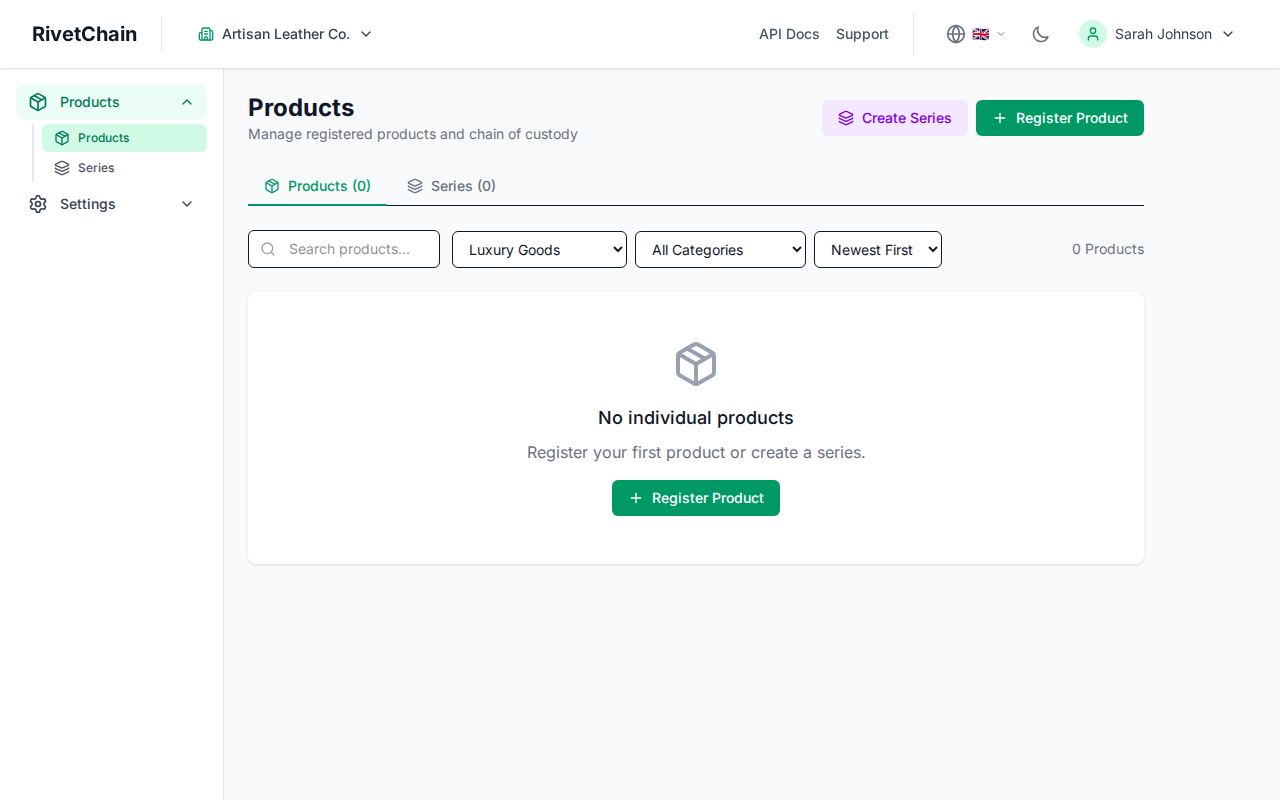
After creation, the product appears in your products list with its unique UUID. You can click on any product to view its full details, event history, and verification status.
Managing Multiple Products
As your catalog grows, the products page provides tools to search, filter, and sort your inventory. You can filter by category, status, or series to quickly find specific items.
Events and State Changes
Every product maintains an event ledger that records its full lifecycle. Events are immutable entries that describe state changes such as creation, transfers, inspections, or custom actions. Each event is cryptographically hashed. For products where blockchain anchoring is turned on, events are anchored to the blockchain in hourly Merkle tree batches (or one by one, if you choose individual anchoring on the Scale plan).
You can add events manually from the product detail page or programmatically through the API. Common event types include ownership transfers, status updates, quality inspections, and document attachments.
File Uploads and Images
You can attach files and images to products and events. These attachments are stored securely and referenced in the verification record. Supported file types include images (PNG, JPEG, WebP), PDFs, and other common document formats.
Categories and Statuses
Categories and statuses help you organize your products. You can configure custom categories (such as "Electronics," "Artwork," or "Documents") and statuses (such as "Active," "In Transit," or "Archived") from your company settings page. These labels appear on your products list and can be used as filters.